
|
Manage Templates |
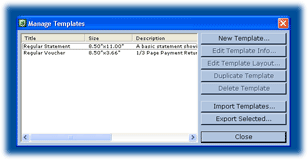 Selecting from the Main Menu opens the Manage Templates
dialog. (Note: You cannot manage templates through a network.)
Selecting from the Main Menu opens the Manage Templates
dialog. (Note: You cannot manage templates through a network.)Create, Edit, Design, Duplicate, Delete, Import, and Export templates from this dialog. Edit Template Info, Edit Template Layout, Duplicate Template, and Delete Template are available only when a template is selected in the list on the left side of the dialog. Clicking New or Edit Info opens the Edit Template Information dialog to manage the name, description, type, and size of templates. Clicking Edit Layout opens the Template Designer to create and modify the appearance and content of templates. Clicking Duplicate creates a copy of the selected template. Import Templates allows you to open another portfolio, select templates from that portfolio, and copy them into your original portfolio. Export Selected Templates lets you browse another portfolio file and insert selected templates there. Hold Shift while clicking on templates in the list to select multiple consecutive templates. Hold Control while clicking on templates in the list to select multiple non-consecutive templates to export. |