
|
Loan Menu |
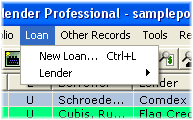 Available from the Main Menu, the Loan menu allows you to perform all tasks related to a single loan. Most of the items on this menu are not available unless there is a single loan
selected in the list of loans.
Available from the Main Menu, the Loan menu allows you to perform all tasks related to a single loan. Most of the items on this menu are not available unless there is a single loan
selected in the list of loans.opens the Loan Wizard with a new loan record. When the wizard completes, the loan is recorded in the portfolio. 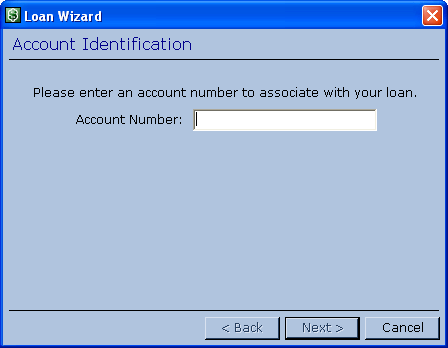 lets you set up a new loan using a specific template: mortgage, auto or personal, construction, Flexloan, or miscellaneous. 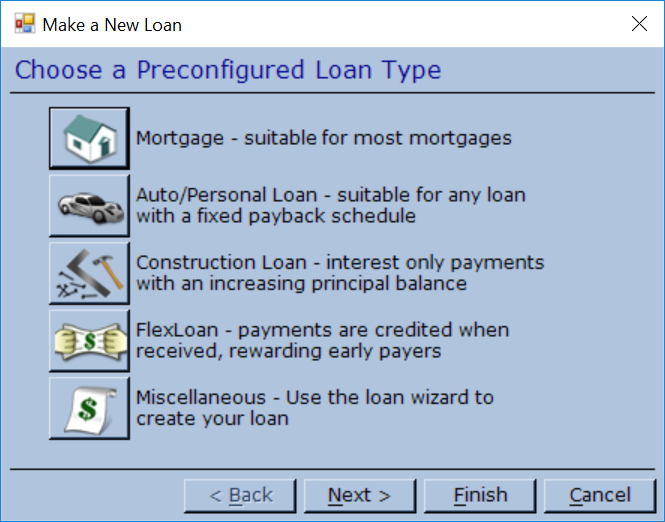 - The Payoff Calculator determines the payoff amount for a specified date. You can also record loan payoffs and charge-offs. 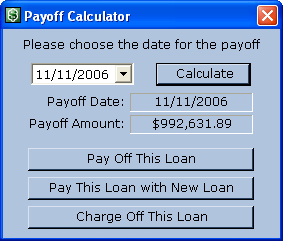 - To save processor time, loans are calculated when records are changed, such as adding a payment or changing the interest rate. This is usually sufficient during ordinary servicing of a loan. If a loan becomes delinquent or otherwise changes, it may be necessary to click . This lets you update information, such as Amount Due and Amount Past Due, in order to print a current statement. The loan status is computed in real time based on the due date of the next payment. It is not affected by the calculation process. opens the Loan Wizard with the currently selected loan. You can make changes to the loan in case you entered the wrong dates or interest structures. If you are changing the interest rate or regular payment during the course of a loan, use or from the Loan menu. 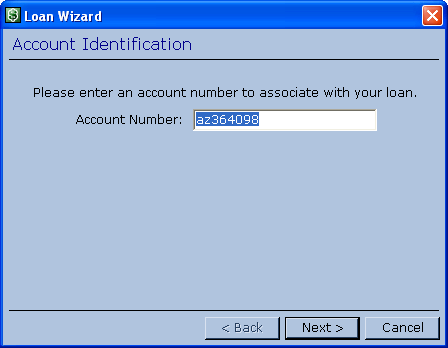 - After a loan is repaid or sold and the appropriate payment information is noted in the records (for report accuracy), use to mark the loan as closed and hide it on the list of loans. Clicking the Show Closed Loans button on the toolbar displays all open and closed loans in the portfolio. Clicking the Show Closed Loans button again hides closed loans. removes erroneous records from your portfolio. This permanently removes the payment and other records, and they are not reflected on reports. Do not use this to remove closed loans. Use instead. 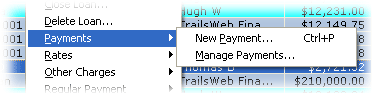 has two submenu items for managing the payments associated with the currently selected loan:
opens the payment dialog with a new payment record bound to the current loan. opens the Manage Payments dialog, showing all payment records that apply to the currently selected loan. Payments may be created, edited, and deleted from this dialog. 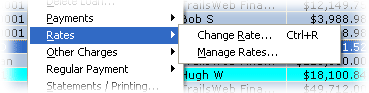 has two submenu items for managing the interest rate over the life of a loan:
allows you to create a rate record that sets the interest rate on a loan as of a specific date. opens the Manage Rates dialog for creating, editing, and deleting interest rate records. 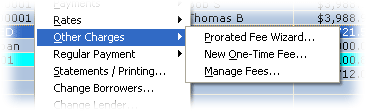 has three submenu items for creating and managing fees associated with the selected loan
and a third party:
has three submenu items for creating and managing fees associated with the selected loan
and a third party:is useful for applying a fee over a specific number of payments. For example, if bi-annual payments are due in relation to a loan that pays monthly, the Prorated Fee Wizard can split the amount evenly over six loan payments. can be used to record a fee that applies once, such as a bounced check fee. opens the Manage Associated Fees dialog for creating, editing, or deleting any of the fees associated with the selected loan. 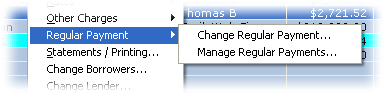 has two submenu items for adjusting the regular payment (the amount due each payment cycle).
creates a new regular payment record specifying the regular payment amount and the date
the new amount applies.
has two submenu items for adjusting the regular payment (the amount due each payment cycle).
creates a new regular payment record specifying the regular payment amount and the date
the new amount applies.opens the Manage Regular Payment dialog for creating, editing, and deleting regular payment changes on a loan. 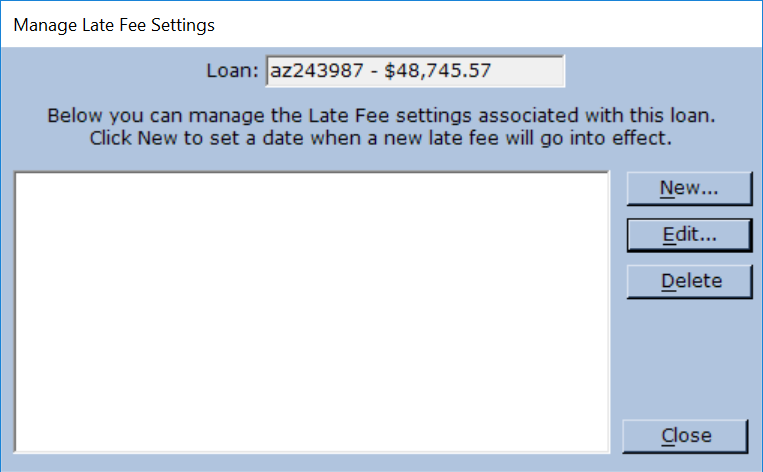 lets you modify late fee settings for a selected loan.
opens the Borrowers dialog from the Loan Wizard, allowing you to change which borrowers are associated with the loan. The Menu contains two sub-menus. 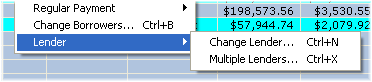 opens the Lender dialog from the Loan Wizard, allowing you to assign the loan to a
different lender.
opens the Lender dialog from the Loan Wizard, allowing you to assign the loan to a
different lender.lets you add lenders associated with a loan, specificying time periods and interest rates. The Menu lets you export files to an external portfolio. 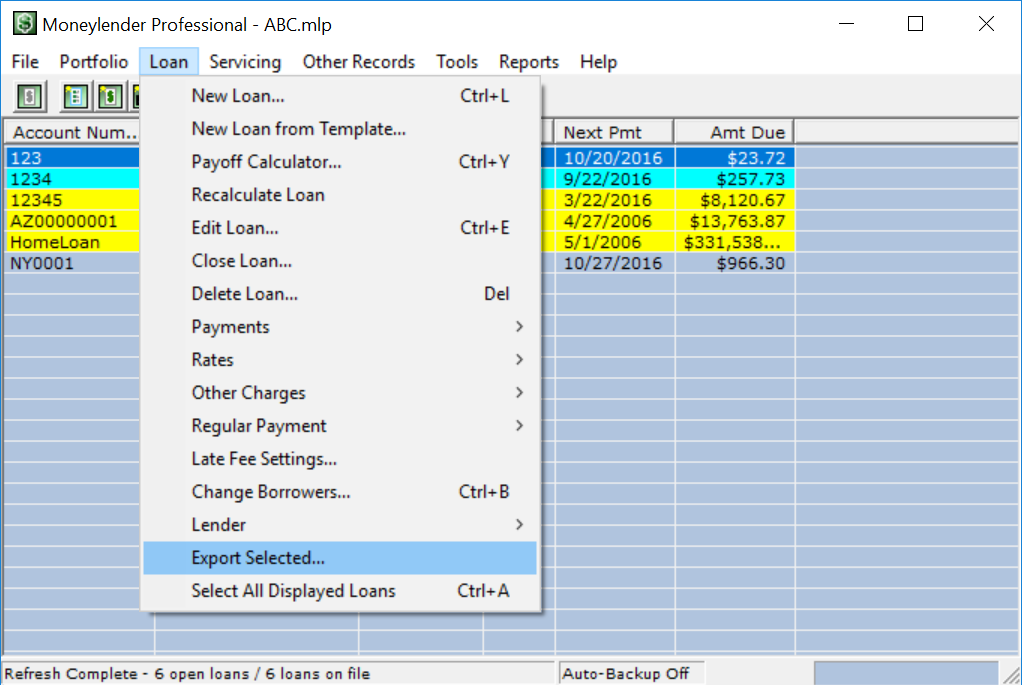 To choose all loans on the screen, click on .
|